


Classroom Projector Image Size Guide: Choosing the Right Screen Size for Schools
Selecting the correct projector image size for classrooms is not about choosing the biggest screen that fits on the wall — or the smallest one that simply fits the budget.
For Principals, IT Managers and Business Managers, classroom projection size directly affects:
- Student readability
- Learning outcomes
- Technology longevity
- Budget efficiency
Too small — and students at the back struggle to read.
Oversized images can sometimes reduce brightness or clarity, but in most schools the more common issue is screens that are simply too small for the room.
This guide explains how to determine the ideal screen size for a classroom projector, based on viewing distance, content type, room limitations, resolution, and brightness.
The Fundamental Principle: Image Size = Readability
The primary purpose of classroom projection is not visual impact. It is clear information interpretation.
Screen size should be determined by:
- How far students sit from the display
- What type of content is shown
- How much detail must be readable
Industry standards published by AVIXA outline structured viewing distance recommendations based on content type.
These principles form the foundation of correct projector image size for classrooms.
Step 1: Identify the Type of Content
Not all projected content requires the same screen size. Most classroom material falls into three categories:
1️⃣ High Detail Content
Examples:
- Excel spreadsheets
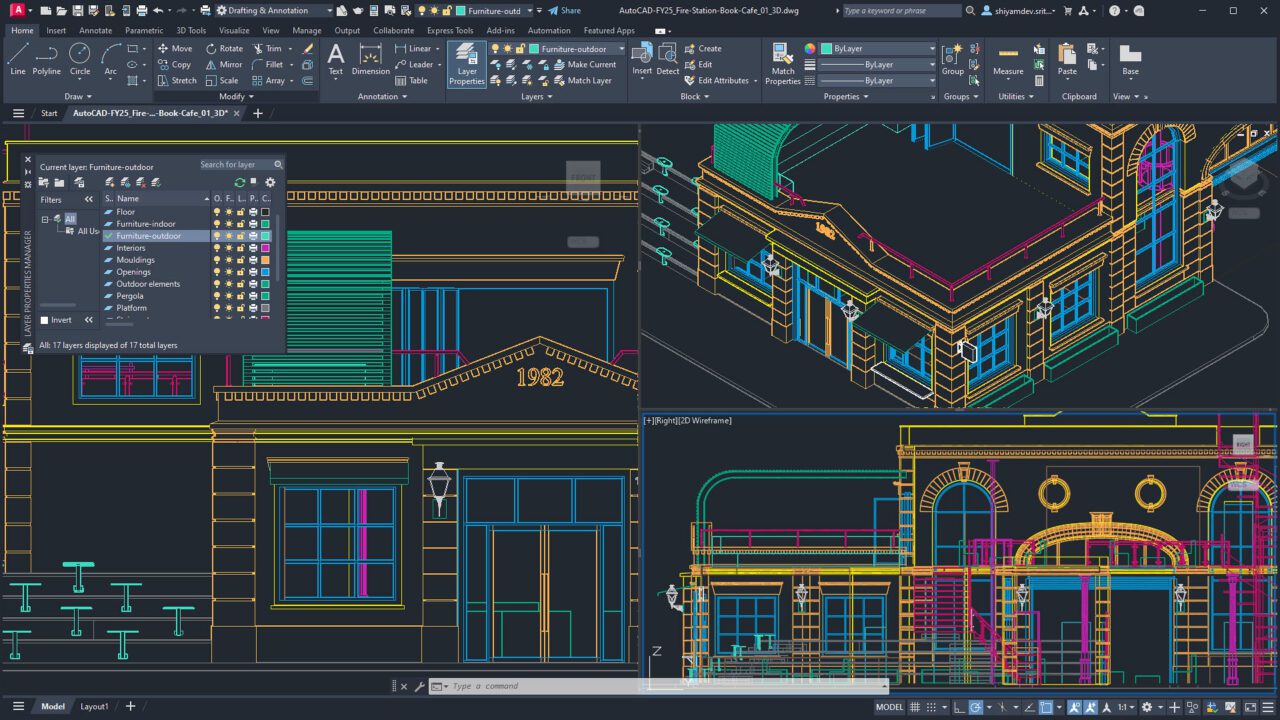
- CAD drawings
- Fine diagrams
- Small text
This type of content requires the largest screen height relative to the viewing distance because students must clearly read fine details.
Standards such as those referenced by AVIXA recommend closer viewing distances when detailed content must be interpreted.
If students are seated too far away from a small screen, fine text quickly becomes difficult to read.
2️⃣ Medium Detail Content
Examples:
- PowerPoint slides
- Standard lesson materials
- Mixed text and images
This is where most classroom projection systems operate.
The screen must still allow students to read text comfortably, but the level of detail is typically less demanding than spreadsheets or technical diagrams.
Many AV guidelines assume this type of content when estimating typical classroom screen sizes.
3️⃣ Low Detail Content
Examples:
- Video playback
- Photos
- Large graphics
This type of content is far more forgiving.
A practical analogy:
In decades past, families would watch movies on small CRT televisions with many people in the room. Everyone understood the film — because video does not require fine-detail reading.
Low-detail therefore allows greater viewing distances relative to screen height.
Step 2: Use Viewing Distance as a Guideline
Industry guidance typically relates screen height to the distance of the furthest viewer.
Standards referenced in professional AV design, including those from AVIXA, indicate that acceptable viewing distance varies depending on the level of detail being displayed:
- Highly detailed content requires viewers to sit relatively closer to the screen
- Standard presentations allow greater viewing distance
- Video content allows the greatest viewing distance
These ratios help AV designers estimate appropriate screen sizes during system planning.
However, real classrooms rarely allow the “ideal” screen size suggested by theory. Ceiling heights, wall space, and classroom layouts often require a balanced compromise between ideal viewing conditions and physical limitations.
For this reason, viewing distance guidelines are best used as planning references rather than strict calculations.
Tools such as the Epson Display Size Calculator can also provide a quick estimate of suitable screen sizes based on room depth and content type, helping schools visualise what different projection sizes might look like in practice.

Step 3: Consider Room Limitations
Even if theoretical guidelines suggest a large screen, practical installation constraints must always be considered.
Important questions include:
- Is the ceiling high enough for the recommended screen height?
- Will the image drop too low on the wall?
- Will sightlines be obstructed?
- Is there sufficient wall width?
For example, in a classroom with a 2.7 m ceiling, installing a very tall projection screen may leave insufficient clearance beneath the image.
Because of these limitations, screen size decisions often involve practical compromise.
In some cases, schools may choose to:
- Adjust seating layout
- Increase text size in teaching materials
- Install additional displays for large rooms
This is why classroom viewing distance and screen size must always be evaluated alongside room design.
Step 4: Aspect Ratio Matters (4:3 vs 16:9)
Many older classrooms used 4:3 projection screens.
Modern classrooms typically use 16:9 widescreen formats.
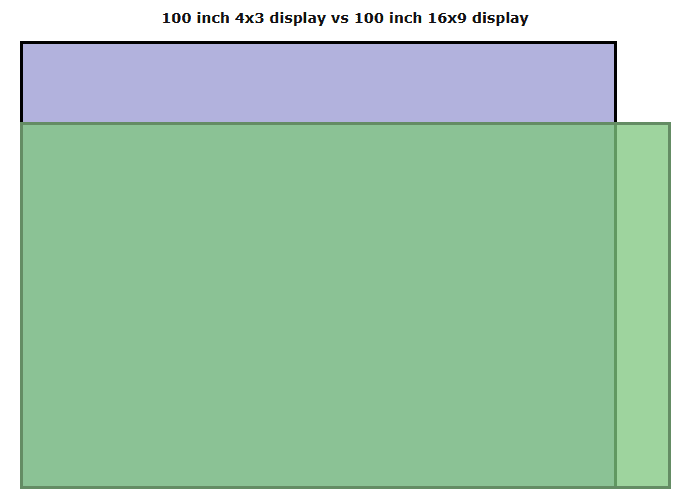
However, switching to widescreen without increasing overall screen size can unintentionally reduce screen height.
Because text readability depends largely on vertical image height, this change can make text appear smaller even if the diagonal size remains the same.
This explains why some schools felt their newer widescreen projectors looked “smaller” than older systems, even when the screen size appeared unchanged.
Example: 100-inch Screen Height Comparison
| Screen Type | Aspect Ratio | Approx. Image Height | Impact on Readability |
| 100″ Standard | 4:3 | ~1.52 m | Taller image, larger text |
| 100″ Widescreen | 16:9 | ~1.24 m | Shorter image, smaller text |
Difference:
A 100-inch widescreen display provides around 18% less vertical image height than a 100-inch 4:3 screen.
Because classroom readability depends largely on screen height rather than diagonal size, replacing a 4:3 screen with a 16:9 screen of the same diagonal can unintentionally reduce text visibility for students seated further back.
Step 5: Resolution Must Support Screen Size
As image size increases, resolution becomes more important. If resolution is too low, text appears pixelated when the image is large.
Common classroom projector resolutions include:
WXGA (1280×800)
- Entry-level modern classroom resolution
- Suitable for basic slides and video
- Limited for detailed spreadsheets and fine text
Full HD (1920×1080)
- Recommended baseline for most schools
- Strong text clarity
- Better suited for larger screen sizes
4K (3840×2160)
- Very high pixel density
- Suitable for very large screens or highly detailed content
- Often excessive for standard classrooms
For most education environments, Full HD represents a practical modern standard, particularly as screen sizes increase.
However, higher resolution is not automatically better. Resolution must match both the content type and the physical screen size being used.
👉 Related: Best Classroom Projector Resolution for Schools: WXGA vs Full HD (1080P) vs 4K
Step 6: Brightness and Screen Size Are Connected
Screen size directly affects brightness.
When the image becomes larger, the same amount of light spreads over a greater area — reducing perceived brightness.
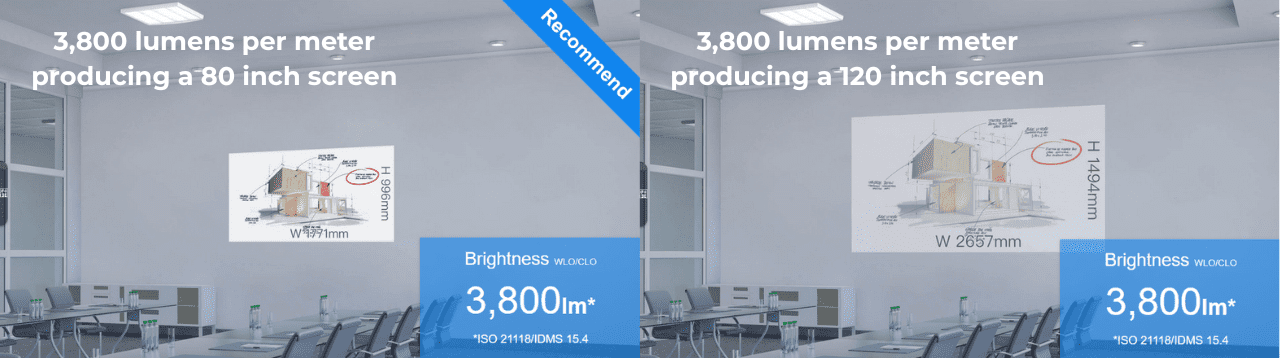
Even high-lumen projectors cannot overcome:
- Excessive ambient light
- Direct sunlight on the screen
- Oversized images relative to brightness capability
If budget limits brightness, schools may need to:
- Reduce image size
- Improve light control
- Consider alternative display technologies
Brightness, resolution and image size must be planned together.
👉 Related: How Many Lumens Does A Classroom Projector Need?
The Three (Sometimes Four) Decision Drivers
When selecting school projector image size, evaluate:
1️⃣ Technical Requirement
What must students clearly read?
2️⃣ Room Constraints
What physically fits while maintaining proper sightlines?
3️⃣ Design Considerations
Is the display purely functional, or intended to create visual impact?
4️⃣ Technology & Budget
Does the chosen display technology limit achievable brightness or size?
A technically correct 2m-high image may fit the room — but if brightness or budget constraints reduce image quality, a slightly smaller screen may deliver better overall clarity.
👉 Related: Classroom Projector Placement Guide for Schools
When One Screen Is Not Enough
In deeper classrooms where ideal screen height cannot be achieved:
- Add supplementary rear displays
- Use multiple screens
- Reduce seating depth
- Combine projection with secondary LCD reinforcement
There is no universal screen size for every classroom.
Quick Reference: Screen Size Guidelines
| Content Type | Typical Viewing Requirement | Content Type |
| High detail | Larger screens required for fine text | High detail |
| Medium detail | Standard classroom projection | Medium detail |
| Low detail | Greater viewing distance acceptable | Low detail |
When planning a projection system, always confirm that:
- The ceiling supports the required screen height
- The resolution supports text clarity
- The projector brightness supports the chosen image size
Screen Size and Resolution Should Work Together
Selecting the right classroom projector is not about choosing the largest screen or the highest resolution available.
It is about selecting a combination that suits:
- The type of content being displayed
- The depth and layout of the room
- The level of detail students need to interpret
- The school’s long-term teaching requirements
A large screen does not automatically require ultra-high resolution. Likewise, a high-resolution projector will not compensate for a screen that is too small for the viewing distance.
The objective is balance — ensuring that screen height supports readability, and resolution supports the level of detail required for everyday teaching.