


Interactive Classroom Projectors: Features, Benefits and Limitations
What Are Interactive Classroom Projectors?
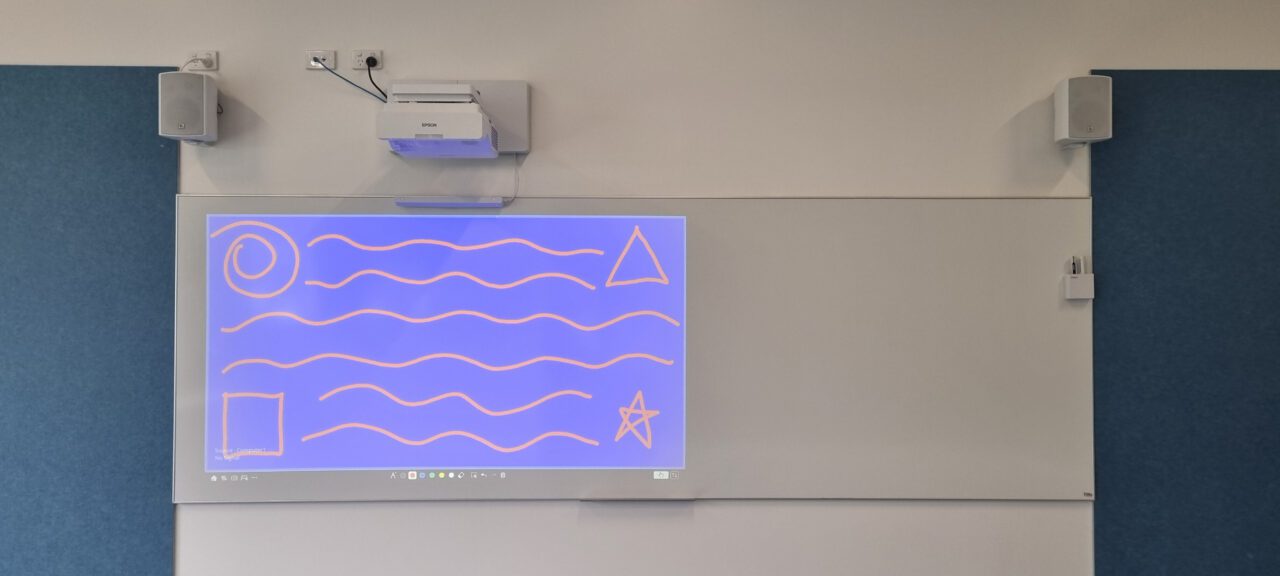
Interactive classroom projectors combine standard projection with a pen or touch-based input, allowing teachers and students to control content directly on the projected surface using a pen (or finger on some models).
Instead of operating a laptop from a desk, users can:
- write or draw on the board
- annotate over slides or web pages
- change slides or open apps
- capture and save notes
In practice, the projection surface becomes a large interactive workspace — similar to an oversized touchscreen — while still functioning as a normal whiteboard when the projector is off.
Most interactive classroom projectors for schools use ultra-short-throw models, mounting close to the board to minimise shadows and glare.
What Makes a Projector Interactive?
A standard projector only displays an image. An interactive projector system adds hardware and software that detect user input on the surface and send that information back to a computer.
This typically includes:
Integrated camera or sensors
Built into the projector to track touch or pen position.
Input device (pen or finger touch)
- Active pens emit an infrared or LED signal the projector can detect
- Finger-based systems use additional sensors or a laser curtain to detect touch
Position tracking and triangulation
The system calculates the exact input location and converts it into mouse or touch coordinates.
Computer communication (USB/network)
Touch signals are sent to the connected laptop or PC, allowing the board to behave like a large mouse or touchscreen.
Without these components, a projector remains display-only. With them, it becomes an interactive projector system capable of real-time control and annotation.
Why Ultra-Short-Throw Design Matters for Interactivity
Interactivity requires users to stand directly at the board. Traditional or standard-throw projectors can cast shadows, create glare, or shine light into the presenter’s eyes.
Ultra-short-throw projectors address these issues by projecting a large image from only a short distance above the board.
Because the projector sits close to the surface:
- presenters are less likely to block the image
- glare is reduced
- eye safety and comfort improve
- touch and pen tracking remain consistent
- movement at the board feels natural
UST projection also enables large images in compact rooms without complex mounting.
For these reasons, UST has effectively become the standard configuration for interactive projectors in schools.

Learn More: Ultra-Short-Throw Classroom Projectors: A Smart Choice for Modern Schools?
How Interactive Projectors Work
Interactive projectors detect user input in two main ways:
Pen‑based Interaction
Interactive pens emit a defined signal (often LED or infrared), which the projector’s integrated sensors track. These pens act like digital pointers or mouse inputs, sending position data back to the connected computer. This method is precise and familiar for detailed annotation or writing.

Touch‑based Interaction (Laser Curtain/Finger)
More advanced models deploy a laser curtain across the board. This creates a plane of invisible light. When a user’s finger breaks the plane, the projector’s camera triangulates the touch point and relays it to the connected device. This allows pen and finger input without requiring a battery‑powered pen.

Both methods allow natural writing and control at the board. However, both methods also rely heavily on accurate calibration and a perfectly flat surface to maintain reliable performance.
Why Surface Flatness Is Critical for Interactive Performance
Surface quality has a much greater impact on interactive projectors than many schools expect.
Touch systems assume the board is flat, rigid and unobstructed. If the surface bows, flexes or contains small protrusions, sensor beams can be blocked or misread.
Installation best practice typically requires the surface to be:
- flat and smooth
- securely mounted and non-flexing
- free from trays, frames, cables or protruding screws
Even minor irregularities can create:
- “dead zones”
- cursor offset from the pen tip
- missed or ghost touches
- inconsistent writing
- frequent recalibration
With a display-only projector, small surface imperfections might only cause minor image distortion. With an interactive projector, they directly affect usability.
For reliable performance, the whiteboard should be treated as part of the interactive system — not just a projection surface.
A flat, rigid, securely mounted whiteboard or projection surface is essential for consistent tracking and long-term reliability.
Video on how finger touch units are being set up. Installation requires precise mounting of the projector and finger touch unit as well as a flat board surface for the system to function properly. Source: Epson Europe
Finger Touch Installation Requirements
Finger-touch units also have strict positioning requirements.
Typical guidelines include:
- mounting the touch unit centrally above the image
- maintaining a 25–100 mm gap above the projected area
- ensuring the path is free from obstructions
- avoiding direct sunlight or strong lighting
Incorrect spacing or environmental interference can cause ghost touches or reduced responsiveness.
Proper installation is essential for consistent tracking accuracy.
Caption: Source: Epson America
Core Features Schools Should Expect
When comparing interactive projectors for schools, these are the practical features to evaluate:
- Ultra-short-throw design
Minimises shadows and glare, improves safety, and supports accurate touch input near the board.
- Input method
- Pen only
- Pen + finger touch
Finger touch units reduce pen management but usually adds cost.
- Brightness and image performance
Higher lumens improve visibility in typical classroom lighting.
- Built-in whiteboard software
Might include:
- multi-page whiteboarding
- annotation tools
- shapes and highlighters
- screenshot capture
- saving/exporting notes
- Connectivity
- USB touch return
- HDMI/video inputs
- Optional wireless integration
Uses of Interactive Projectors in Schools
Interactive classroom projectors are versatile and support a range of educational activities:
- Front‑of‑class instruction: Teachers can annotate over slides, web pages or documents in real time.
- Collaborative learning: Multiple students can work on the screen simultaneously.
- Integration with digital lessons: Supports lessons run from laptops, tablets, or networked software.
- Blended teaching models: Helps combine digital content with traditional whiteboard teaching.
- Large‑format presentation: Interactive workspaces can exceed 85–100″+ in size, larger and cheaper than many flat‑panel displays.
Pros — Advantages of Interactive Projectors
- Flexible Use
When turned off, the projection surface remains a normal whiteboard, giving teachers the best of both traditional and digital tools.
- Large Interactive Display
Projectors can create significantly larger interactive areas than most interactive LCD panels, without the physical space constraint of a permanent screen.
- Lower Upfront Cost for Large Size
Compared to large interactive panels, projectors can deliver greater screen size for a lower initial investment — especially if existing whiteboards are already in place.
- Minimal Room Alteration
Installation typically involves mounting the projector above an existing board without removing teaching tools or whiteboard space.
- Supports Collaborative Activities
Large projected surfaces can accommodate group work, allowing multiple users to engage with interactive content simultaneously.
Cons — Limitations to Consider
- Calibration and Maintenance
Precise alignment, spacing and calibration are required for reliable interactivity. Installation is generally more involved than display-only projectors.
Over time, mounts, boards and sensors can shift slightly due to building movement or everyday use. This can reduce accuracy and requires periodic recalibration.
- Ambient Light Sensitivity
Like all projection systems, they perform best in controlled lighting. Bright daylight or overhead lights may wash out images or interfere with touch sensors and reduce touch accuracy.
- Surface Dependence
Unlike flat LCD panels, performance depends heavily on the condition of the projection surface. Wall irregularities, warped boards or flexible mounting can reduce both image clarity and touch accuracy.
- Pen Management
Most pen‑based systems require batteries and management of physical pens. It is possible to run out of batteries during lessons or misplace pens.
- Accuracy and Precision Compared to Touchscreens
Interactive projection systems are generally less precise than factory‑calibrated touchscreens, particularly for fine writing or detailed graphic work. If highly precise touch performance is critical, interactive screens may be the better option.
- Image Quality Compared to Touchscreens
Projected images, regardless of brightness improvements, tend to be less vibrant than flat‑panel displays.
The Importance of Calibration, Surface Factors, and Ongoing Service
This is one of the most overlooked aspects of interactive classroom projectors.
Unlike touchscreens that are factory-assembled as a single unit, interactive projectors rely on multiple separate components:
- projector alignment
- sensor positioning
- board flatness
- stable mounting of projector and finger toucher units
Over time, these elements can shift slightly due to normal use or building movement. Even small changes can reduce touch accuracy.
For consistent performance, schools should plan for:
- periodic recalibration
- alignment checks
- surface inspections
- cleaning filters and lenses
- firmware/software updates
For many schools, this becomes part of a scheduled service or room audit (quarterly or annually).
Proactive servicing:
- prevents drift and touch errors
- reduces teacher frustration
- extends equipment lifespan and usability
- protects the original investment
Interactive projection is not “set and forget” technology — it performs best when supported by a simple maintenance routine.
Preventative servicing reduces teacher frustration and extends equipment life.
For assistance with installation, calibration or maintenance, schools can contact D.I.B Audio Visual at service@dibaustralia.com.au.
Interactive Projector vs Interactive Flat Panels
When evaluating interactive projectors vs LCD/LED interactive panels, consider:
| Feature | Interactive Projector | Interactive Panel |
| Image clarity | May require controlled lighting | Bright, consistent with ambient light |
| Maintenance | Calibration + servicing | Minimal |
| Touch accuracy | Good, but less precise | Very high multi‑touch precision |
| Cost | Lower for large sizes | Higher upfront, especially when you need larger sizes |
| Flexibility | Can revert to whiteboard when off | Always digital surface |
| Whiteboard Space | Uses existing whiteboard surface | Dedicated wall space required for screen installation |
Is an Interactive Projector Right for Your School?
Interactive projectors are particularly well‑suited to schools and educational settings that value:
✅ Flexible use of classroom front wall space
✅ Large interactive surfaces without extensive renovation and cost
✅ Schools that value traditional whiteboards
✅ Cost‑effective interactivity for group work and annotations
They may be less ideal where:
✖ Precision handwriting or fine detail is required
✖ Rooms where bright ambient light cannot be controlled
✖ Schools wanting “set and forget” maintenance expectations
Summary
Interactive classroom projectors provide a practical bridge between traditional whiteboards and fully digital displays. By combining touch capability with ultra-short-throw projection, they allow teachers to interact naturally at the board while maintaining large, cost-effective screen sizes.
Although they require thoughtful installation, proper surface preparation and ongoing calibration, they remain a strong choice for many schools seeking flexible, collaborative learning spaces without sacrificing familiar whiteboard functionality. Working with an authorised Epson Premium Partner such as D.I.B Audio Visual can help ensure correct and accurate installation and reliable long-term support from consultation through to servicing.