

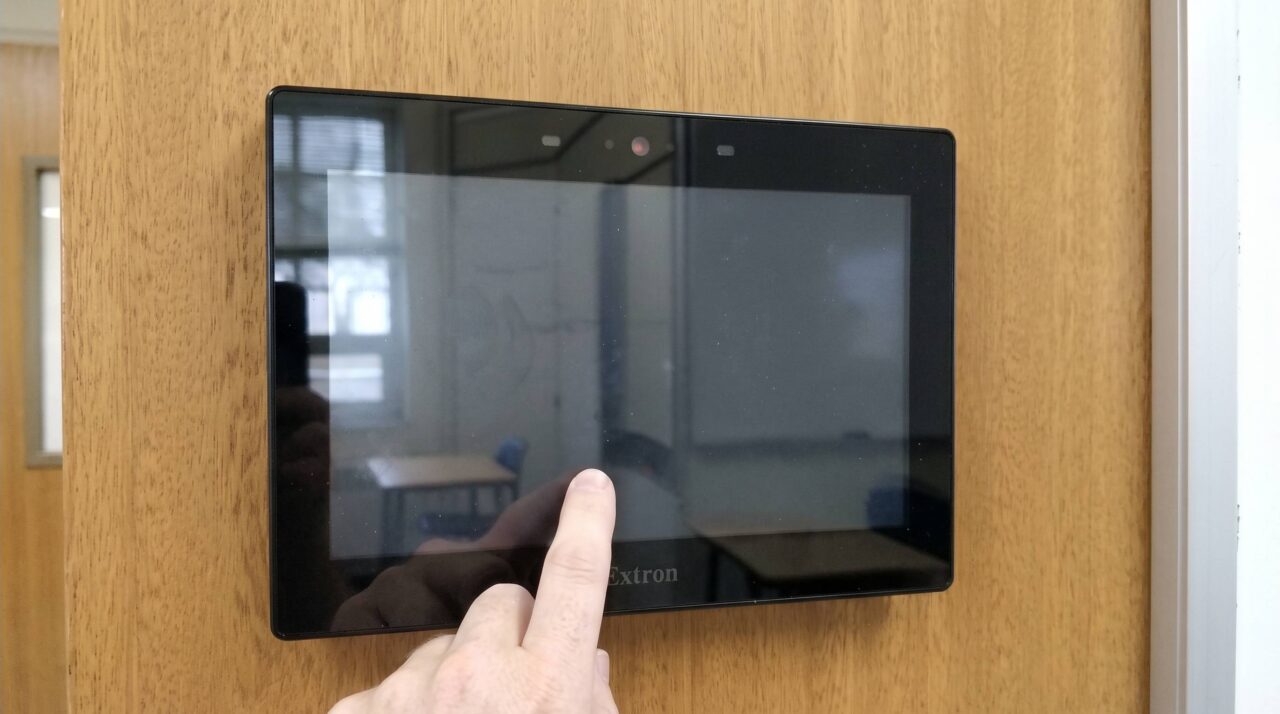
AV Control Panel Not Responding? Troubleshooting Tips for Schools
You’re ready to start a lesson or presentation, but your classroom control panel isn’t responding. The buttons do nothing, the touchscreen appears frozen, or the projector or display won’t respond to your commands.
Before assuming the panel is faulty, there are a few simple checks you can try. Checking the power and observing how the panel responds can help you identify the symptoms and determine whether your IT team or an AV technician needs to investigate.
If your control panel continues to have problems, D.I.B Audio Visual provides school AV service and repair across Melbourne and Victoria for schools. You can log a service request through the following channels:
Direct Service Phone: 03 9459 0000
Email: service@dibaustralia.com.au
Why Is My AV Control Panel Not Working?
An AV control panel allows staff to operate classroom or meeting room equipment—such as projectors, displays, audio systems, and source inputs—from one central location.
Control panels generally communicate with equipment via direct control connections (like RS-232) or over a network (often using Power over Ethernet/PoE). When a panel stops working, the culprit is usually power loss, interrupted communication, network configuration changes, or a fault with the controller itself.
Because AV systems vary, the same symptom can have different causes. The aim of these initial checks is to narrow down the problem, not to confirm a fault without further testing.
3 Checks to Try When Your AV Control Panel Is Not Responding
1. Check Whether the Control Panel Has Power
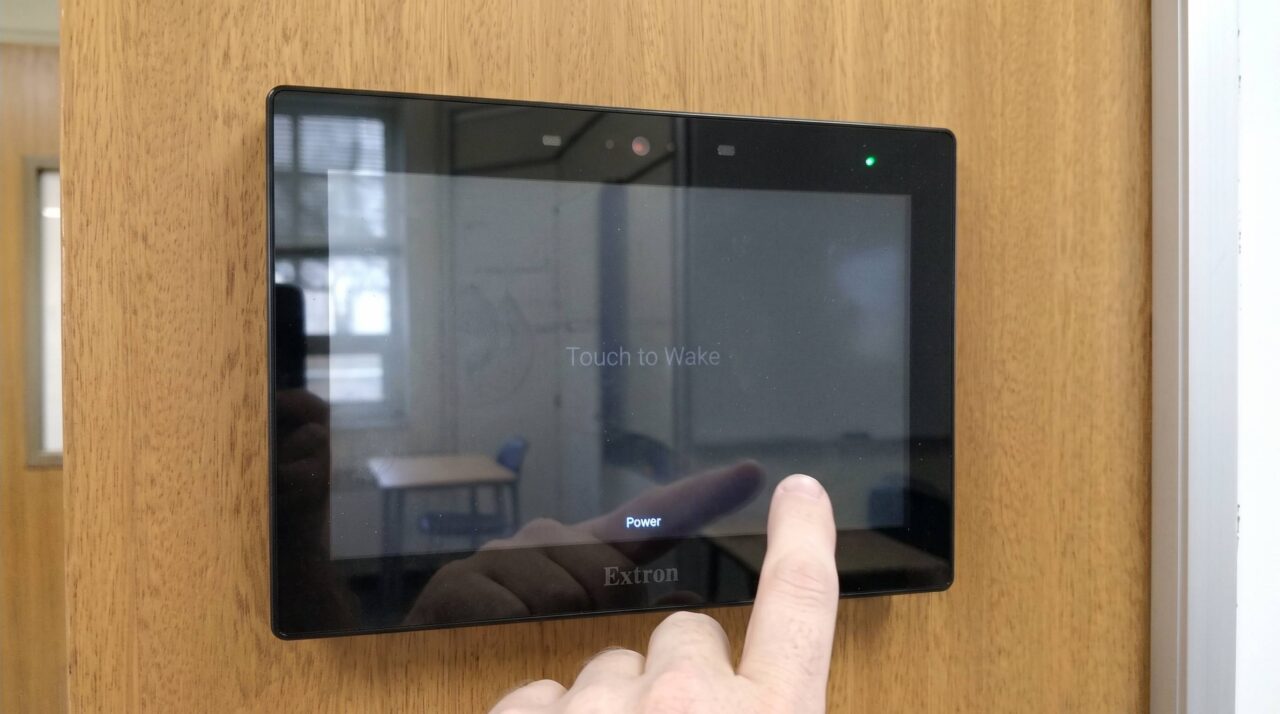
Start by checking whether the panel appears to be receiving power.
- Look for indicator lights or signs that the touchscreen is active.
- If the panel has a display, check whether it is blank, frozen or showing an error message.
- Consider whether the problem started after a power interruption or brownout.
For power-supply-fed panels, the power supply is often in an awkward or hidden spot—such as behind the screen, near the equipment rack or above the projector in a ceiling space. A common cause of power loss is someone switching off the power supply at the wall without knowing what it is, or the power supply failing while the wall socket itself is still turned on, making wall power look fine while the panel remains dead.
Simple check: If accessible, locate the power supply and confirm it is actually plugged in, switched on and working. If the supply is not readily accessible or requires entering ceiling spaces, contact your IT team or AV service provider. Do not enter ceiling spaces or open electrical equipment to investigate the issue yourself.
2. Look for Error Messages or Signs of a Connection Problem
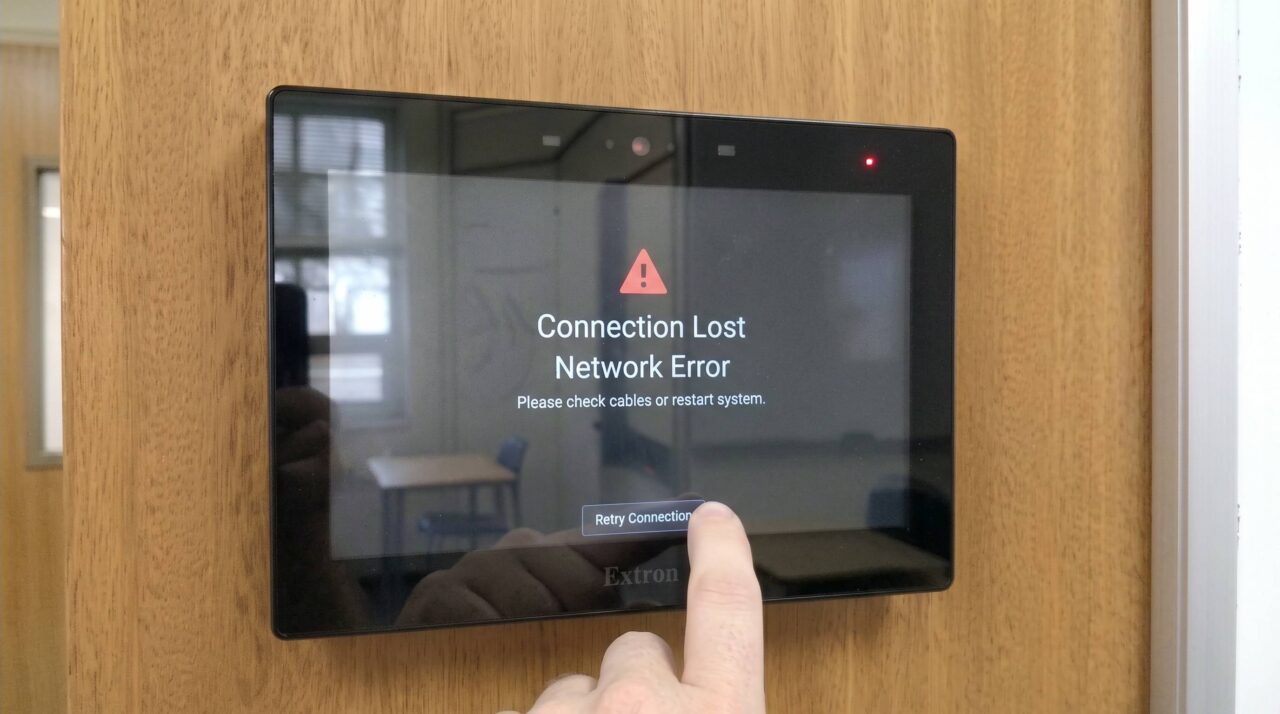
If the panel appears to have power, check whether it displays an error message or indicates that the system is disconnected. A panel may remain powered on but be unable to communicate with the equipment it controls.
For network-fed panels, a change on the school’s IT network can stop the panel from communicating with the equipment. This is not always a physical cable or switch change—a network routing or VLAN change can cut the panel off from the screen without any physical connections being touched.
Simple check: Ask your IT team whether there have been any recent network, switch or VLAN changes that might have affected the AV system.
Observe what happens when you press a button or touchscreen control:
- Does nothing happen at all?
- Does the panel respond, but the projector or display does not?
- Does the panel work intermittently?
- Does the touchscreen freeze or stop responding after a period of use?
Note any error messages and which functions are affected. These observations can help your IT team or AV technician narrow down the possible causes.
3. Check Whether the Buttons or Touchscreen Respond
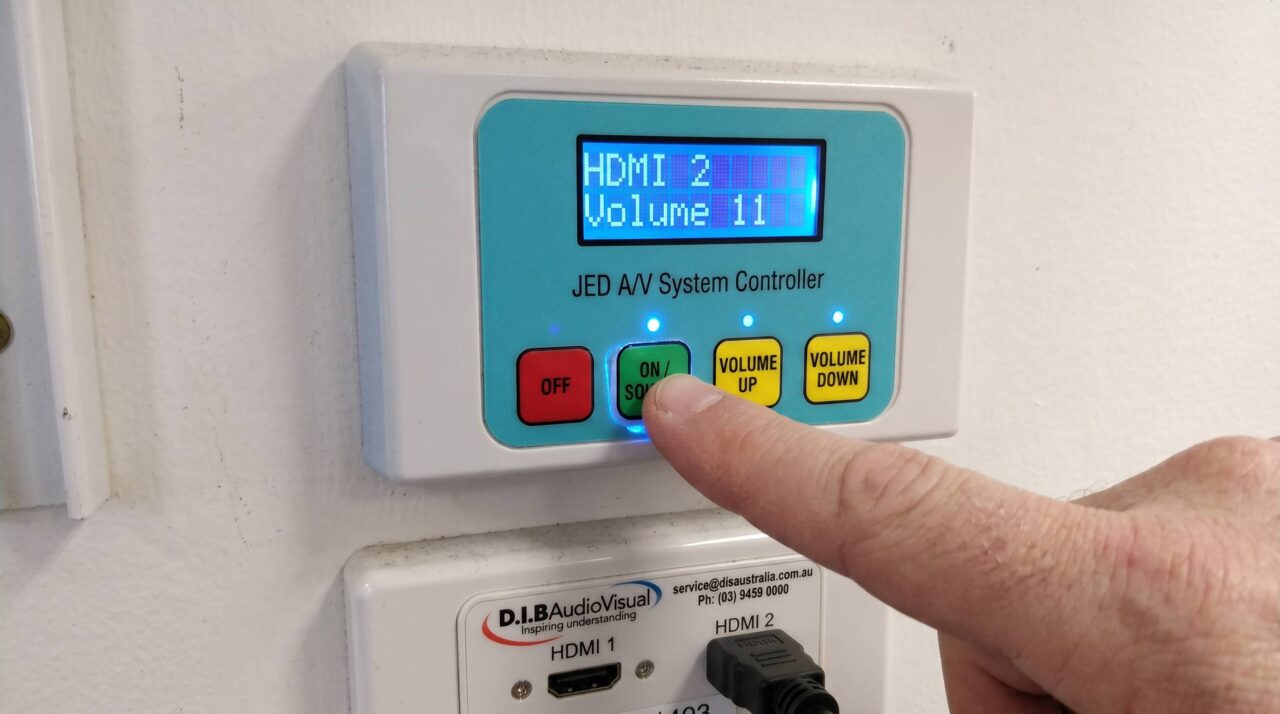
For a panel with physical buttons, check whether they appear to operate normally. For a touchscreen, see whether it responds to touch.
If some controls work while others do not, or the panel responds inconsistently, make a note of the affected functions. Damaged buttons or an unresponsive touchscreen may indicate a hardware problem, but power, communication or configuration issues can produce similar symptoms.
If the panel remains unresponsive after these basic checks, troubleshooting can get complicated quickly. This is exactly why we have a service department who can investigate and resolve deeper technical issues safely.
Common Causes of AV Control Panel Problems
If the basic checks do not resolve the problem, the fault may involve the control connection, the school’s network or another component in the installed AV system.
Faulty RS-232 Connection or Control Port
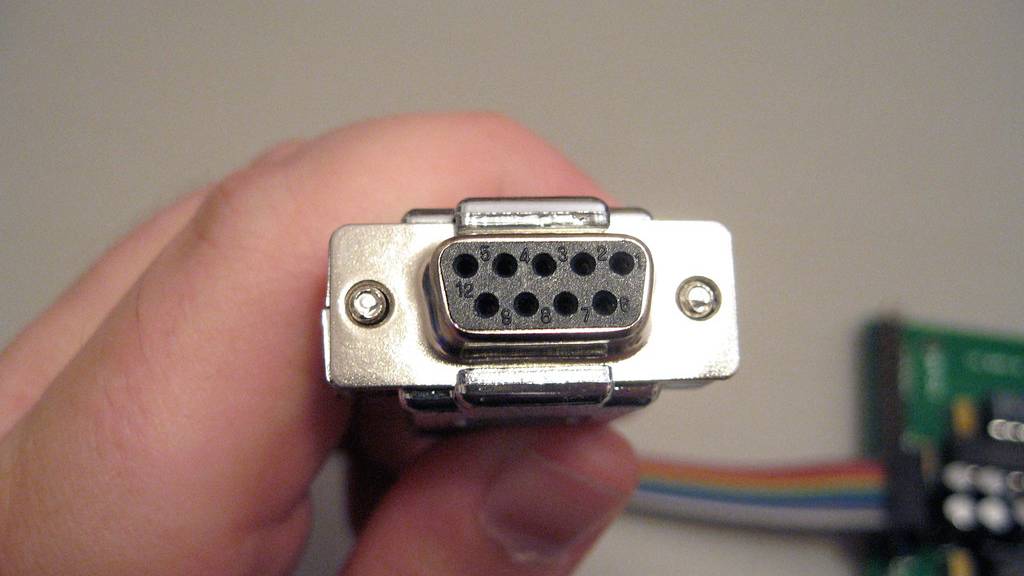
Some AV control panels communicate with a projector or TV through an RS-232 control cable. This connection allows the control system to send commands to the equipment.
If the relevant port fails, the cable becomes disconnected or the connection develops a fault, the panel may no longer be able to control the projector or display.
The panel may still appear to be powered on, making the cause difficult to identify through basic checks alone. An AV technician can inspect and test the control connection to determine where communication is failing.
Network Connection or IP Address Conflict
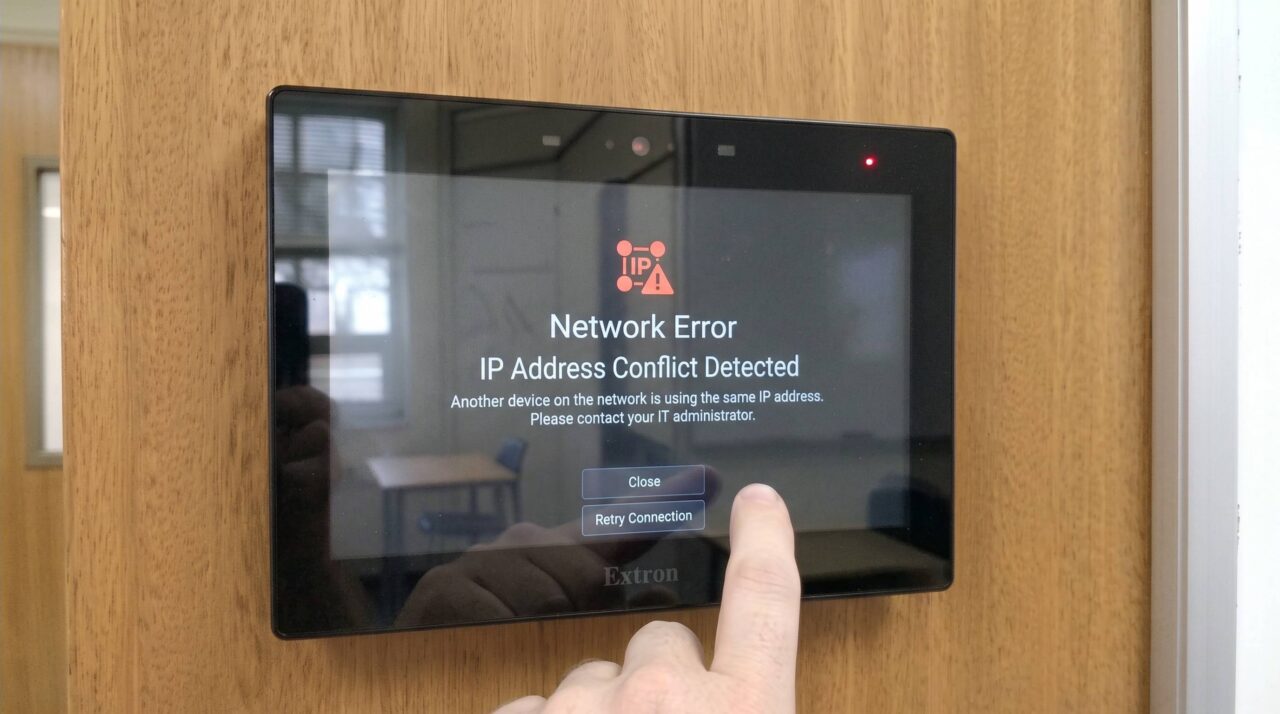
Other AV control systems communicate through the school’s network. Depending on the installation, the panel or another control-system component may also receive power through a compatible network switch using PoE.
If a network-connected control system becomes unresponsive, the school’s IT team can check whether:
- The network cable or switch port has been disconnected.
- Two devices are using the same IP address, creating a conflict.
- A recent network configuration change or VLAN update has interrupted communication.
- The relevant switch port or network equipment is experiencing a problem.
Restarting network equipment may sometimes restore communication, but it is not a universal fix. A restart can also interrupt other connected devices, so the IT team should assess whether it is appropriate before proceeding.
If the network appears to be operating normally but the panel still cannot control the AV equipment, an AV technician may need to investigate the controller, its configuration and its connections.
Power Interruption or Faulty Controller
A power interruption or brownout may affect the control panel, its power supply or other connected AV equipment. If the panel stops working after a power event, note whether other equipment in the room has also been affected. This may help with diagnosis, although it does not confirm that the power event caused the fault.
A wall controller that keeps freezing or an Extron or Crestron controller that is not responding may have a hardware fault. However, the symptoms alone do not establish that the controller is defective. The problem could also involve its power supply, control connections, network connectivity or configuration.
An AV technician can assess the controller and connected equipment to identify the underlying cause. Avoid changing controller programming or system settings unless you have the appropriate technical knowledge and authorisation.
What If the Control Panel Responds but the Projector or Display Does Not?
A control panel can appear to be working while the equipment it controls fails to respond. For example, the panel may accept a command to turn on the projector, but the projector remains off.
Possible causes include a communication problem between the panel and the equipment, a control configuration issue, or a fault with the projector or display itself.
An HDMI auto-switcher issue can also affect which video source appears on the display, even when the control panel responds to commands. In that case, the problem may involve the video signal path rather than the panel.
Note which commands work and which do not. This information can help an AV technician distinguish a control problem from a signal-routing or equipment fault.
When to Get Help With an Unresponsive AV Control Panel
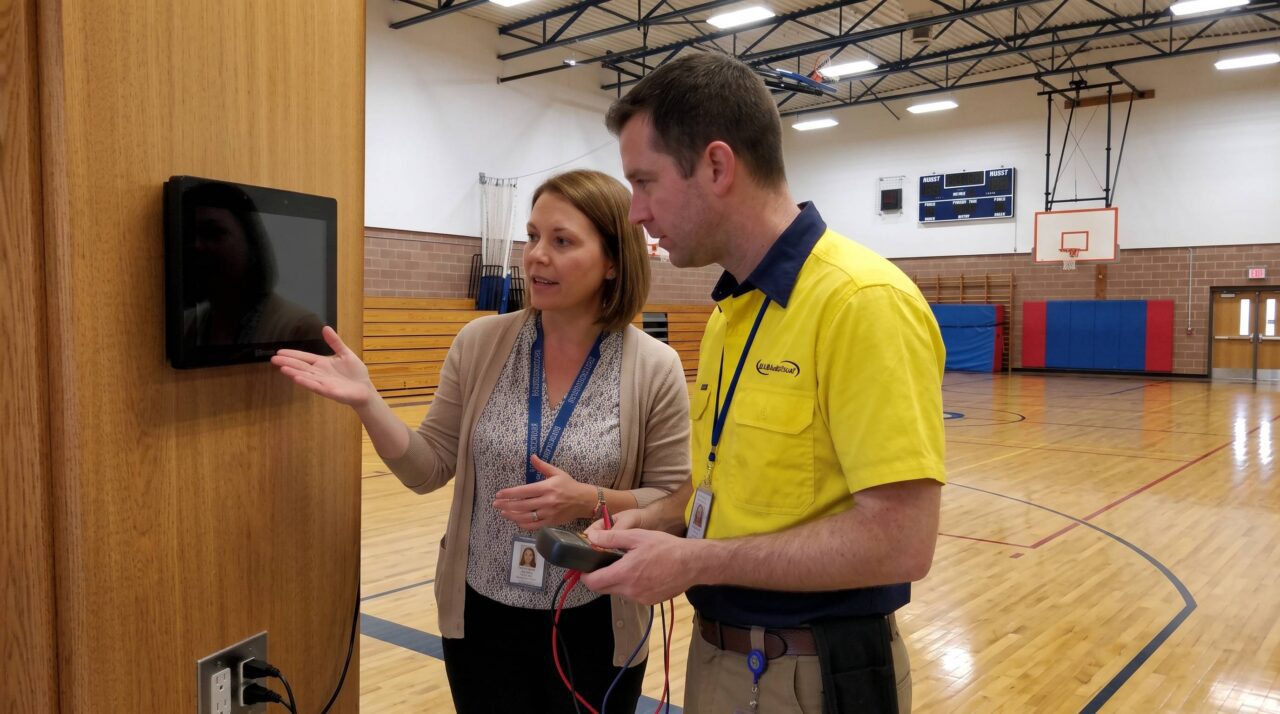
If your control panel remains unresponsive after the basic checks, an AV technician can investigate the cause. This may involve testing control connections, checking the controller configuration or identifying faults in other connected equipment.
Your school’s IT team can investigate network-related issues, including disconnected switch ports, IP address conflicts and recent network changes. An AV technician can assess the control system and work with IT where necessary.
Before arranging repairs, check whether the affected equipment is covered by an existing installation or manufacturer’s warranty. Coverage depends on the equipment, the fault and the applicable terms.
If you need help with a control panel, D.I.B Audio Visual offers complete support—from initial diagnosis to servicing and repair. Log a service request to discuss your symptoms and determine the appropriate next steps.
Direct Service Phone: 03 9459 0000
Email: service@dibaustralia.com.au
For more information about D.I.B’s service capabilities, visit the D.I.B Audio Visual Service page.